The Microsoft ASP.NET middleware makes it straightforward to implement OAuth2 and OpenID Connect flows in an ASP.NET Website. In this article we will go through the code and configuration required to implement the authorization code flow using the standard packages.
Please note this tutorial requires the setting up of a standards compliant Identity and Access Management (IAM) solution as outlined in my previous post:
The above tutorial sets up Identity Server using the Soluto docker image. This tutorial assumes that Identity Server or comparable solution is available.
Implementing the OpenID Connect Middleware
Start by creating an ASP.NET Website and installing the following NuGet package:
This NuGet package does all the heavy lifting, all we need to do is add some settings and configure the middleware to work with the IAM solution. To configure the middleware add the following code to your Program.cs before the call to builder.Build():
builder.Services.AddAuthorization();builder.Services.AddAuthentication(options =>{options.DefaultScheme = CookieAuthenticationDefaults.AuthenticationScheme;options.DefaultChallengeScheme = OpenIdConnectDefaults.AuthenticationScheme;}).AddCookie().AddOpenIdConnect(options =>{var oidcConfig = builder.Configuration.GetSection("OpenIDConnectSettings");options.Authority = oidcConfig["Authority"];options.ClientId = oidcConfig["ClientId"];options.ClientSecret = oidcConfig["ClientSecret"];options.SignInScheme = CookieAuthenticationDefaults.AuthenticationScheme;options.ResponseType = OpenIdConnectResponseType.Code;options.SaveTokens = true;options.GetClaimsFromUserInfoEndpoint = true;// Add required scopesoptions.Scope.Add("openid");options.Scope.Add("profile");options.MapInboundClaims = false;options.TokenValidationParameters.NameClaimType = JwtRegisteredClaimNames.Name;options.TokenValidationParameters.RoleClaimType = "roles";options.RequireHttpsMetadata = false;});
We also need to add the UseAuthentication middleware configuration method which is not in the default Razor pages website template. Shown below is the required middleware configuration:
app.UseHttpsRedirection();app.UseStaticFiles();app.UseRouting();app.UseAuthentication();app.UseAuthorization();app.MapRazorPages();app.Run();
Finally we add the settings to the appsettings.json. If you followed my previous blog post linked above, then the following config should work for you:
"OpenIDConnectSettings": {"Authority": "http://localhost:8020","ClientId": "mft-api-dev","ClientSecret": "MyMFTSecret"}
Testing The Implementation
Once the NuGet package is installed and configured as above we can now test the implementation by adding an Authorize attribute to a page. This will cause a challenge and if the user is not logged in a redirect to the IAM server will happen. An example of a secured page:
using Microsoft.AspNetCore.Authorization;using Microsoft.AspNetCore.Mvc.RazorPages;namespace OAuthSample.Web.Pages;[Authorize]public class SecureModel : PageModel{private readonly ILogger<IndexModel> _logger;public SecureModel(ILogger<IndexModel> logger){_logger = logger;}public void OnGet(){_logger.LogInformation("The secure page was accessed!");}}
If you now run the app you will get redirected to the IAM server when you try to browse to this Secure page. However, do be aware that IAM server will need to have the redirect URI listed. This is dependant on the implementation, but if you used Identity Server as outlined in my previous blog post you do get some useful debug messages:
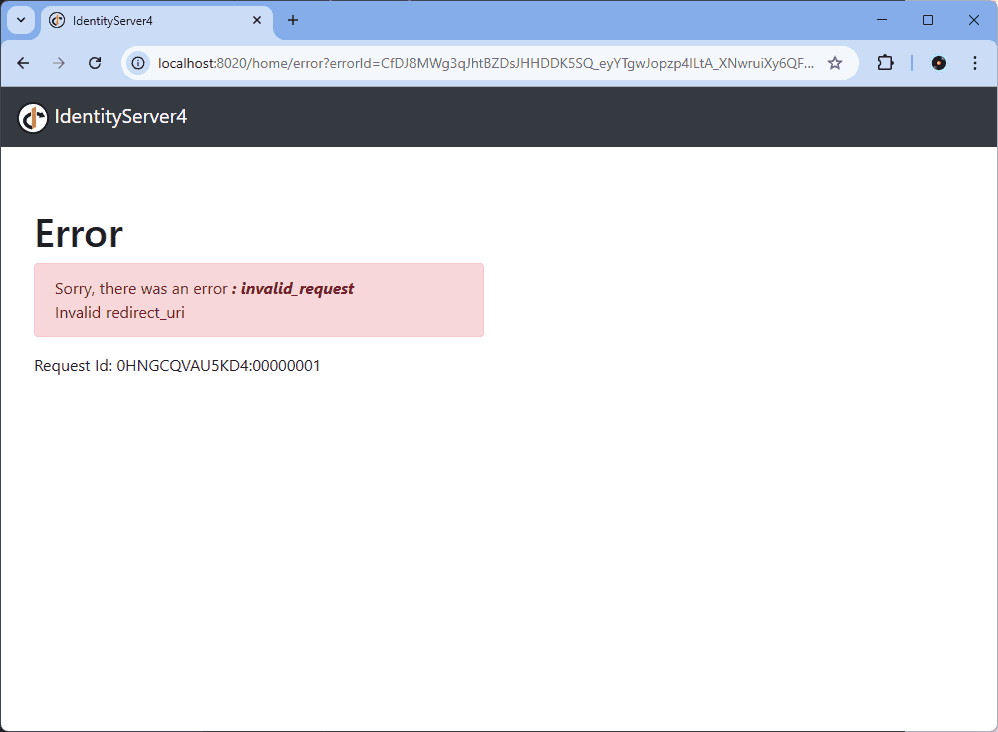
Update the value RedirectUris in the config.json to include the URL that the sample website is running on and restart Identity Server and the sample app. The Identity Server login screen should be properly displayed. The username and password of the IAM setup in the tutorial above are John and Password1! so type these in to be redirected back to the secured page:
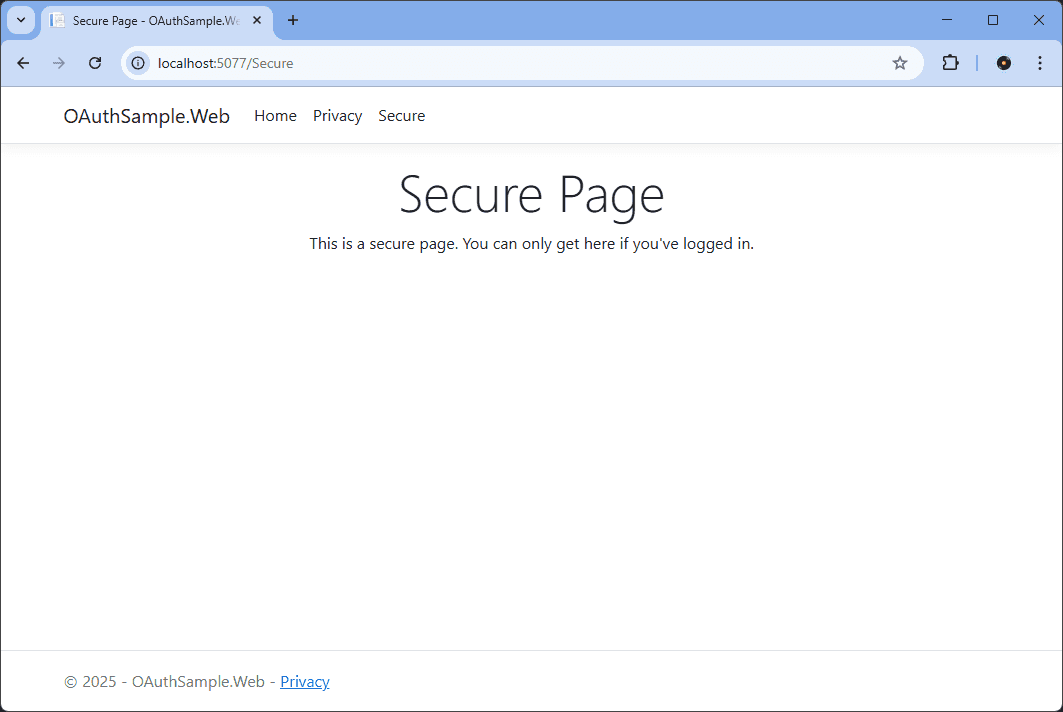
Checkout my github repository for a working example of these changes. Commit c204683 has the changes outlined in this section.
Add a Logout Link
So far we can login, but how do we logout? Next lets implement the logout functionality. We start by adding a new Razor page Logout.cshtml and add the following to the code behind:
public IActionResult OnGetAsync(){return SignOut(new AuthenticationProperties{RedirectUri = "/SignedOut"},// Clear auth cookieCookieAuthenticationDefaults.AuthenticationScheme,// Redirect to OIDC provider signout endpointOpenIdConnectDefaults.AuthenticationScheme);}
We also need a a link in the menu which redirects us to the logout page:
<ul class="navbar-nav">@if (Context.User.Identity!.IsAuthenticated){<li class="nav-item"><a class="nav-link" asp-area="" asp-page="/Logout">Logout</a></li>}</ul>
When we click the Logout link the Logout page clears our local cookie and then redirects us to the IAM to log us out to end the session with the IAM.
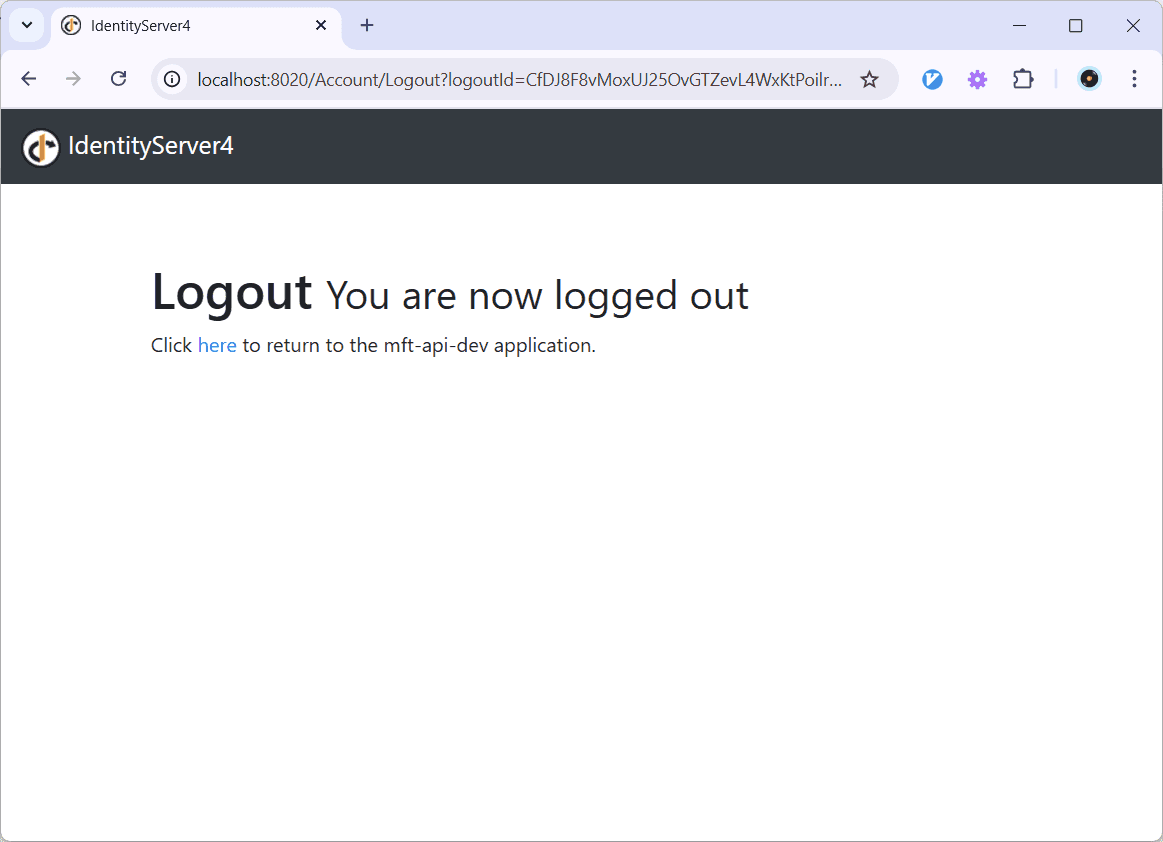
To get the “click here” line to appear, I added the signout callback url of the sample website http://localhost:5077/signout-callback-oidc to the PostLogoutRedirectUris in the config.js of Identity Server. Clicking the here link will redirect you to the signed out page.
Adding a Login Link
Currently when a user navigates to a secure page the middleware initiates the redirect to the IAM but there is no login link for the user to initiate the redirect. Lets add one in. First add a login page with the following code:
[BindProperty(SupportsGet = true)]public string? ReturnUrl { get; set; }public async Task OnGetAsync(){var properties = GetAuthProperties(ReturnUrl);await HttpContext.ChallengeAsync(properties);}private static AuthenticationProperties GetAuthProperties(string? returnUrl){const string pathBase = "/";// Prevent open redirects.if (string.IsNullOrEmpty(returnUrl)){returnUrl = pathBase;}else if (!Uri.IsWellFormedUriString(returnUrl, UriKind.Relative)){returnUrl = new Uri(returnUrl, UriKind.Absolute).PathAndQuery;}else if (returnUrl[0] != '/'){returnUrl = $"{pathBase}{returnUrl}";}return new AuthenticationProperties { RedirectUri = returnUrl };}
And add a login link to the menu. Currently we have a logout link if the user is authenticated so extend the if clause with the following else:
else{<li class="nav-item"><a class="nav-link text-dark" asp-area="" asp-page="/Login" asp-route-returnUrl="@Context.Request.Path">Login</a></li>}
Note in the above snippet we are specifying the return URL in the asp-route-returnUrl attribute using the HttpContext.
Summary
This article uses the standard Microsoft OpenID Connect NuGet package to implement the authorization code flow on an ASP.NET website. It uses Identity Server as introduced in a previous article and shows how to authenticate and add login/logout functionality to a standard
The basic examples come from the Microsoft documentation:
Identity and Access Management is a big subject and but a lot of the complexity is actually in the configuration of the IAM product itself. But once installed the standard NuGet package does a lot of the heavy lifting and there is not to much code to write due to the good support Microsoft has built-in for the OAuth and OpenID Connect standards.
back