The Soluto Github organisation has wrapped up IdentityServer4 in a docker image which can be used to provide an OAuth2 and OIDC standards compliant server for development and testing scenarios.
Getting Started
The following docker compose file can be used to setup a standard configuration for IdentityServer4. Copy this YAML to a local file docker-compose.yml:
version: "3.4"services:oidc-server:image: soluto/oidc-server-mock:latestports:- "8010:443"- "8020:80"environment:ASPNETCORE_ENVIRONMENT: DevelopmentASPNETCORE_URLS: https://+:443;http://+80ASPNETCORE_HTTPS_PORT: 8010ASPNETCORE_Kestrel__Certificates__Default__Password: passwordASPNETCORE_Kestrel__Certificates__Default__Path: /https/aspnetapp.pfxAUTHENTICATION:ISSUER: https://localhost:8010SERVER_OPTIONS_INLINE: |{"Authentication": {"CookieSameSiteMode": "Lax","CheckSessionCookieSameSiteMode": "Lax"}}USERS_CONFIGURATION_INLINE: |[{"SubjectId":"john@email.com","Username":"John","Password":"Password1!","Claims": [{"Type": "email","Value": "john@email.com"},]}]CLIENTS_CONFIGURATION_PATH: /tmp/config/config.jsonvolumes:- ./mock-oidc:/tmp/config:ro- ~/.aspnet/https:/https:ro
Creating Client Configuration
The above YAML references a JSON file which provides client configuration information. Copy the below JSON to a local file at mock-oidc/config.json. This file sets up a default client for a sample application called MFT:
[{"ClientId": "mft-api-dev","Description": "Mock OIDC for running Identity Server locally","AllowedGrantTypes": ["authorization_code","client_credentials","password"],"AllowAccessTokensViaBrowser": false,"RequirePkce": true,"RedirectUris": ["http://localhost:3000"],"AllowedScopes": ["openid", "profile", "email", "mft_api"],"RequireClientSecret": false,"ClientSecrets": ["MyMFTSecret"],"IdentityTokenLifetime": 3600,"AccessTokenLifetime": 3600,"Claims": [{"Type": "aud","Value": "mft_api"}]}]
Notes
- The IdentityServer4 Client documents explain what which each property does.
- By default
RequirePkceistrueset this value tofalseto enable the simpler Authorization Code flow.
Configuring HTTPS
The YAML shown above references a PFX file which is used to enable HTTPS for the server. We need to generate a certificate with the name aspnetapp.pfx in the user’s https folder. Run the following command to set this certificate up:
dotnet dev-certs https -v -ep "$HOME/.aspnet/https/aspnetapp.pfx" -p password
Note see the MSDN docs for dotnet dev-certs for more information
Starting the Server
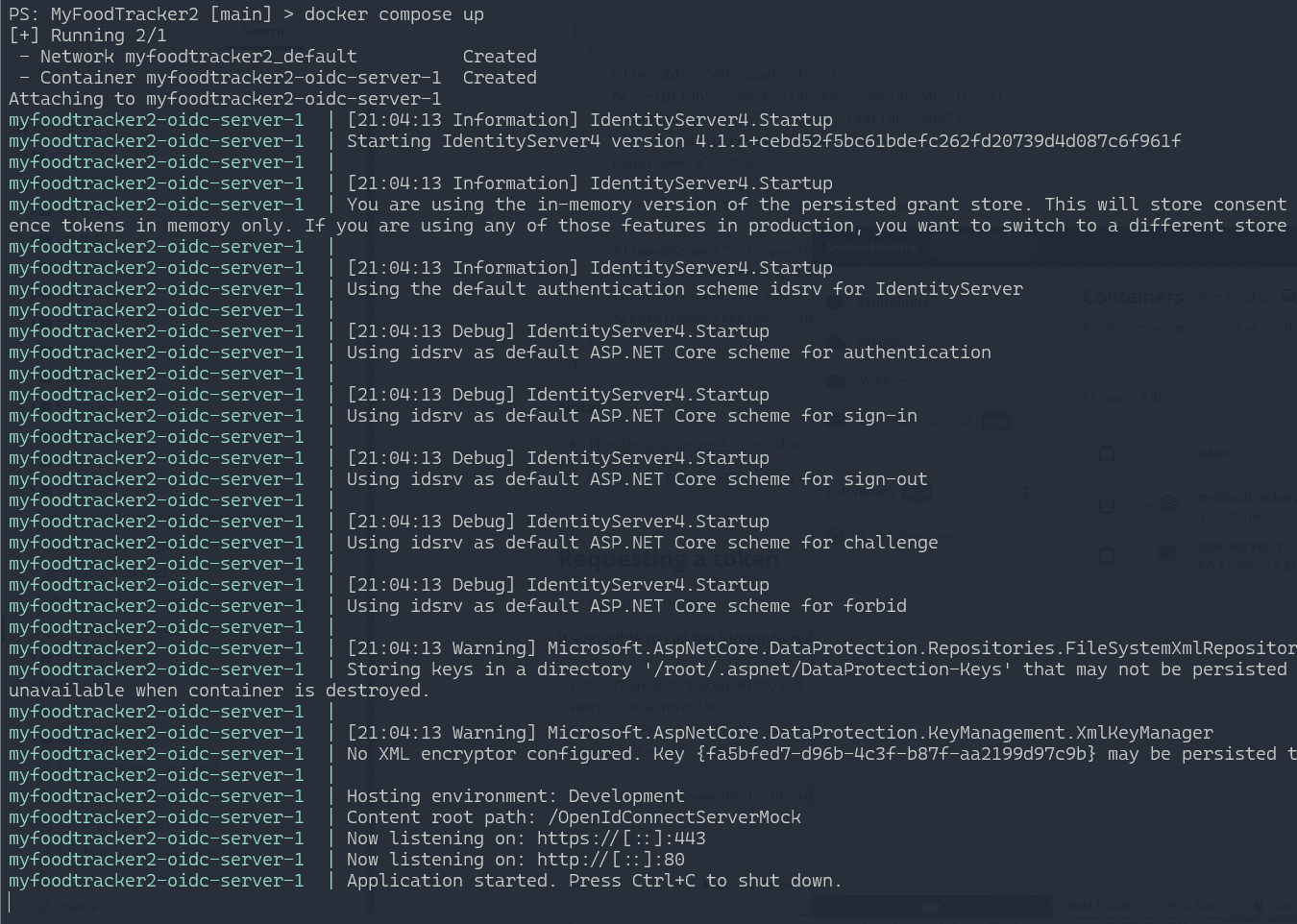
With the config file saved to oidc-mock/config.json, the docker-compose.yml in the root directory and the certificate created we are now ready to run the docker compose up command to start IdentityServer4. On running the command the console will output the logs from the docker image:
Requesting a Token
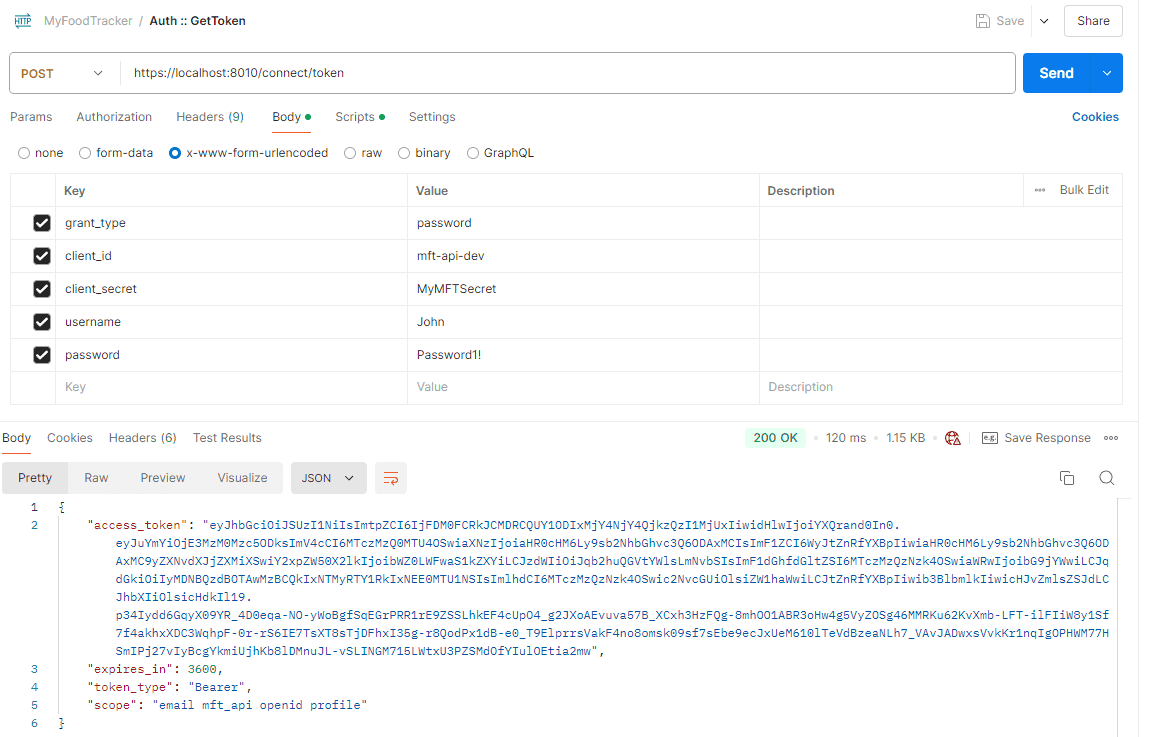
To test our mock server we can use Postman to call IdentityServer4’s token endpoint using the Resource Owner password flow to retrieve a token. The raw HTTP to initiate the request:
POST /connect/token HTTP/1.1Host: localhost:8010Content-Type: application/x-www-form-urlencodedContent-Length: 101grant_type=password&client_id=mft-api-dev&client_secret=MyMFTSecret&username=John&password=Password1!
Using Postman, the same request:
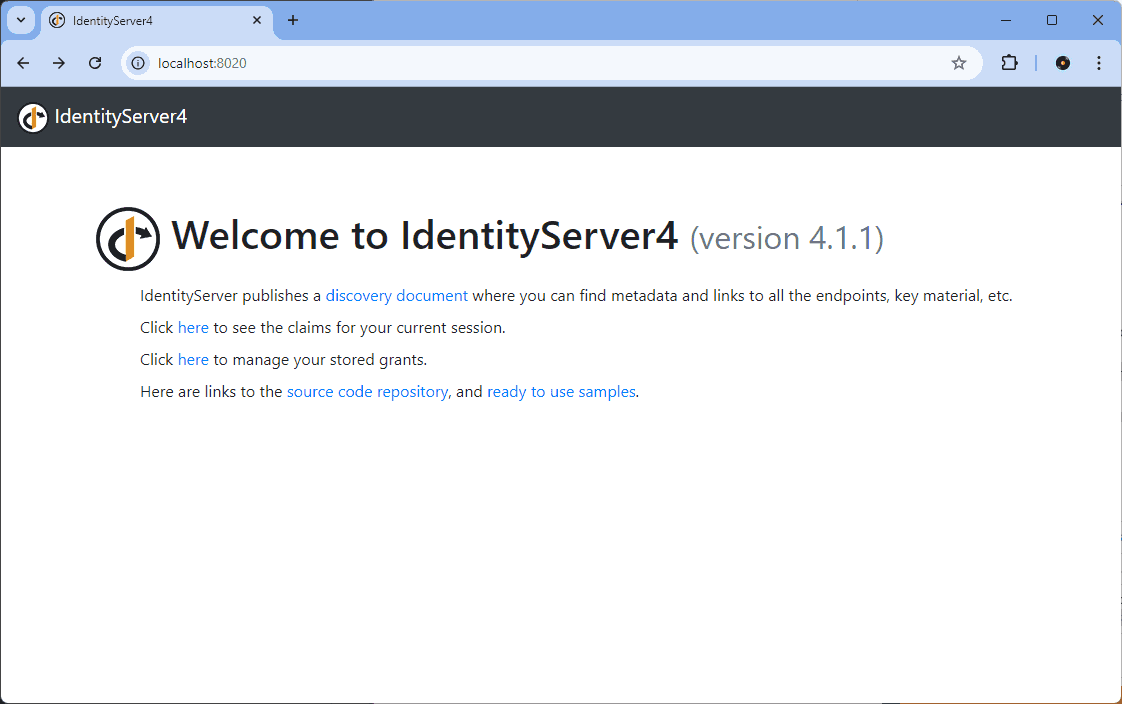
IdentityServer4 also has a web portal and by clicking the “Click here” link to see claims you can force a challenge and be redirected to the login screen. Enter the username John and the password password to authenticate:
IdentityServer4 is now setup and ready for the the configured clients to request tokens. Be sure to read the IdentityServer4 documentation to learn how to configure clients for your scenario.
back