Microsoft SQL Server Profiler is an excellent tool for getting information about the SQL being built and run by Entity Framework against your Microsoft SQL Server database. SQL Server Profiler installs with SQL Server Management Studio (SSMS) but is a separate standalone application and part of the Performance Tools suite.
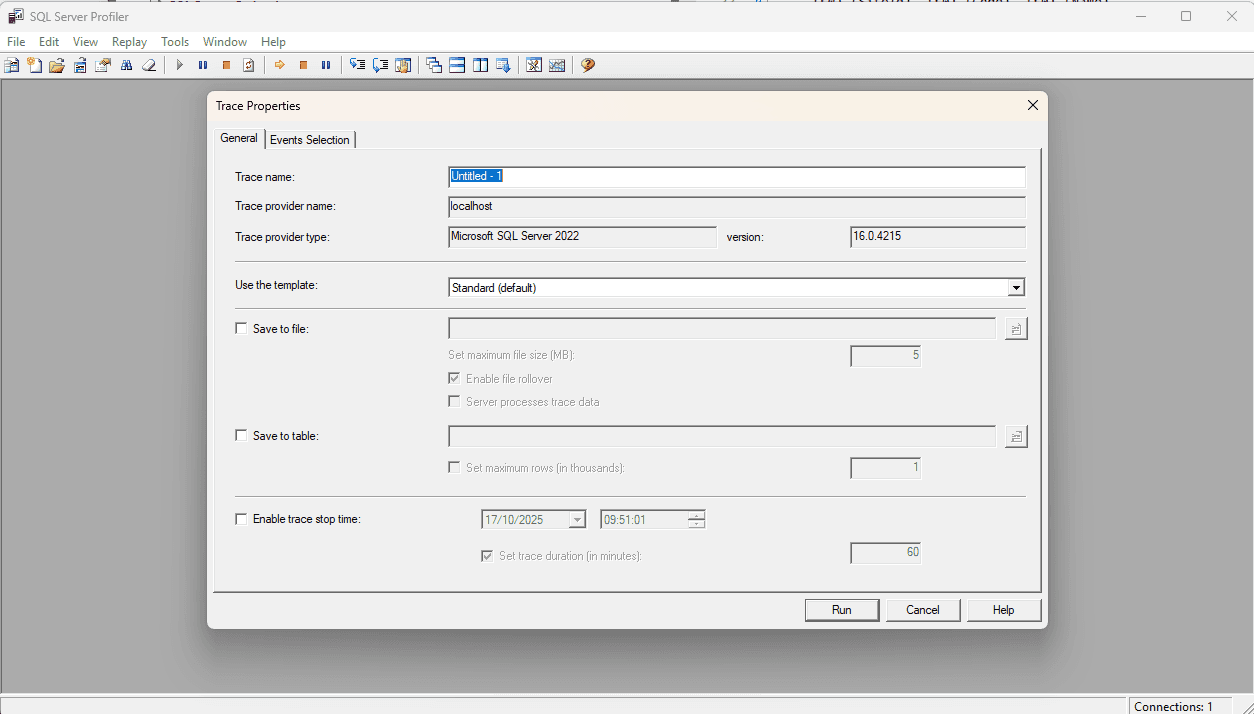
You can start SQL Server Profiler from SSMS by going to the Tools menu and selecting SQL Server Profiler. This will open the profiler with you current SSMS connection selected. On connecting with the standard connection screen the Trace Properties will be displayed:
Configuring Events
Select the Events Selection tab and then check Show all events and Show all columns:
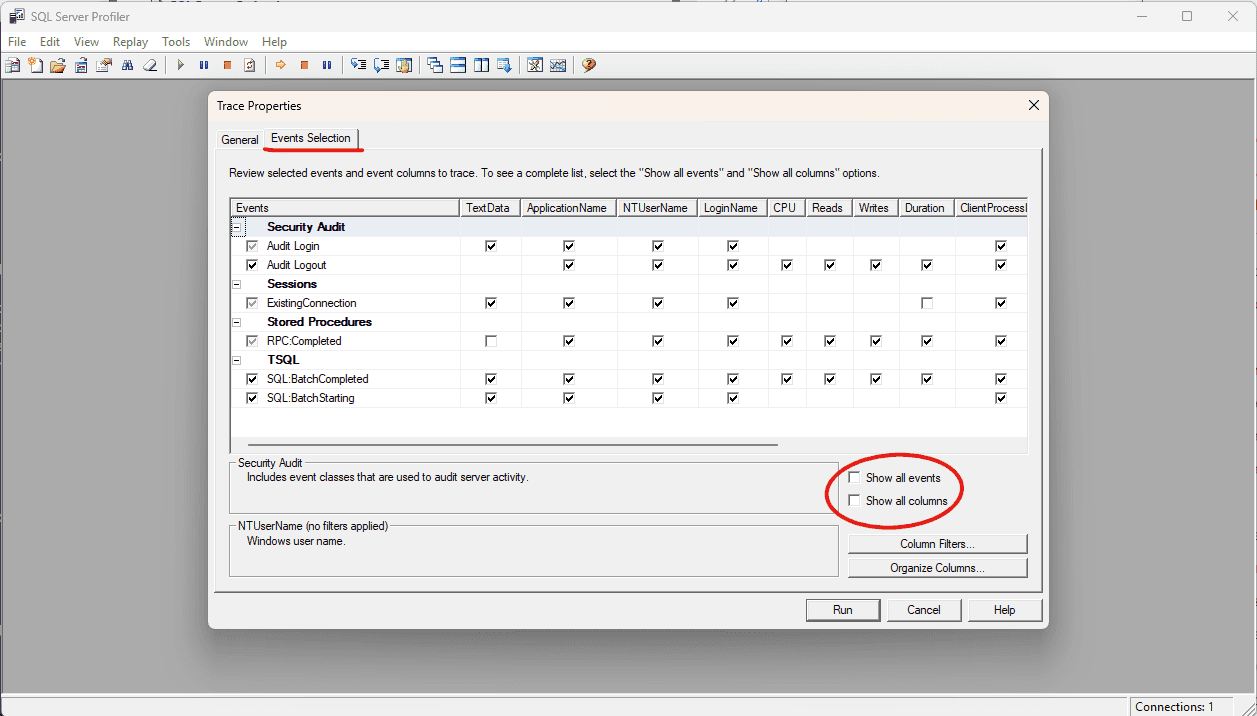
There are a lot of events that track the behaviour of SQL server. I like to add the following:
- SQL:BatchStarting
- SQL:BatchCompleted
- SQL:StmtStarting
- SQL:StmtCompleted
- SP:StmtStarting
- SP:StmtCompleted
- RPC:Starting
- RPC:Completed
Note you’ll notice that the checkboxes in the above screenshot are greyed out - you will need to re-select these columns in order to select all events.
Adding a Filter
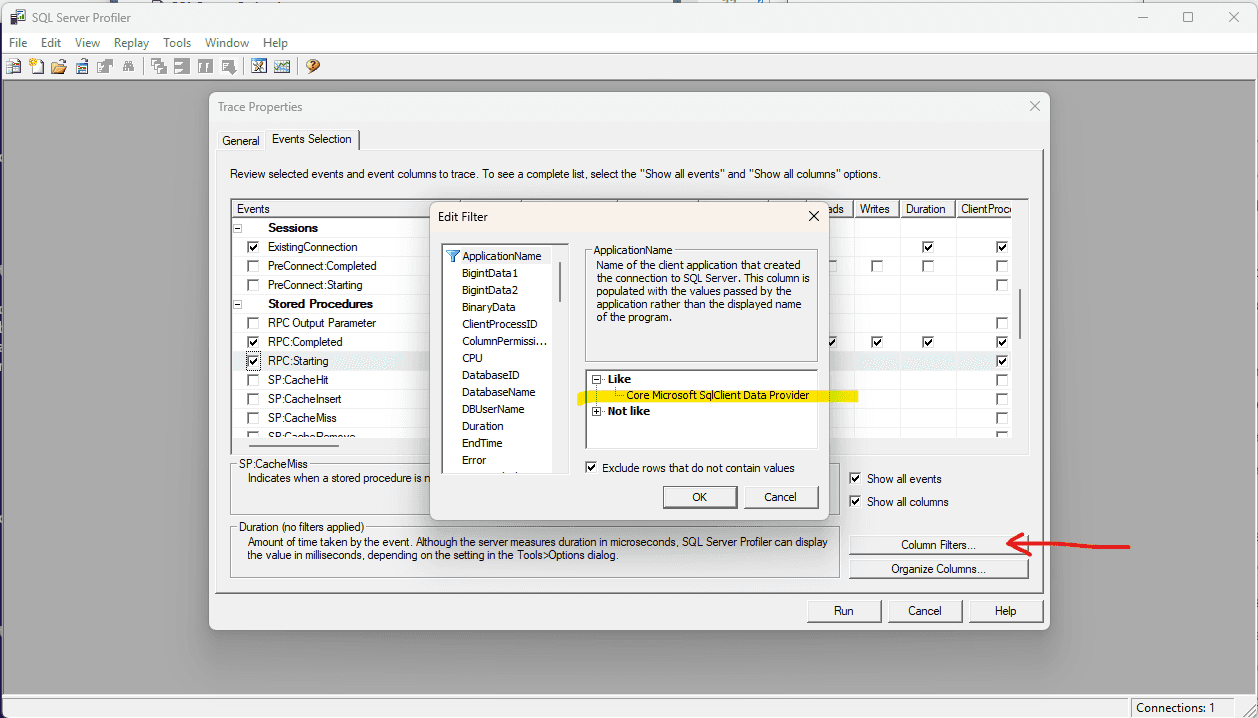
SQL Server can be busy so it’s worth adding a filter so your not in undated with traffic. Select the Column Filter button and add Core Microsoft SqlClient Data Provider in Like against the ApplicationName :
Save As Template
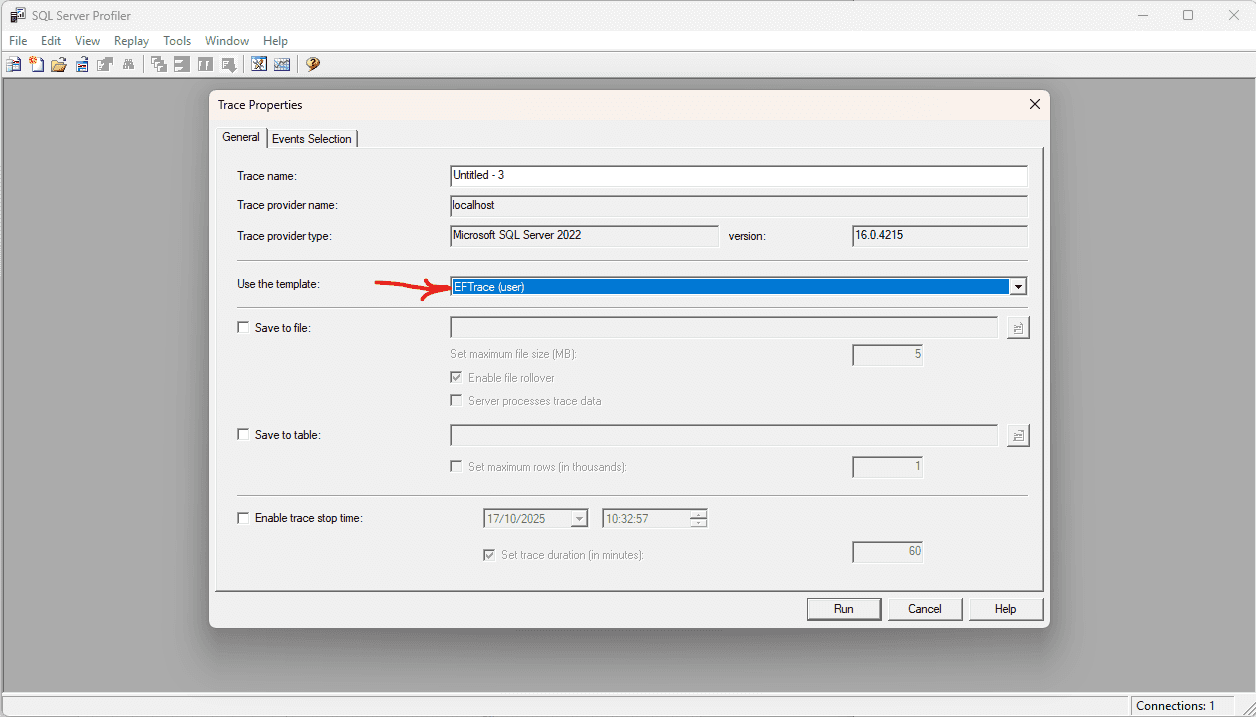
Once the trace is running its possible to go File > Trace > Save As and save the template with an appropriate name. I’ve saved the above as EFTrace so now I can start an Entity Framework trace with the relevant settings and filters:
Summary
SQL Server Profiler is a valuable tool to try to understand the behaviour of an application. By configuring events, adding a filter and creating a template you can quickly and easily gain insight into the crazy antics of your code.
back