Recently I’ve been working on a project which has an Azure DevOps YAML pipeline with all environment config added using pipeline variables. The variable groups feature provides a much better way of grouping and managing pipeline config so I decided to write a script to migrate the variables from the pipeline to a variable group. See Migrate-PipelineVariables.ps1 for the complete code listing.
For this blog post I recreated the scenario on a test account with some fake data to simulate the problem:
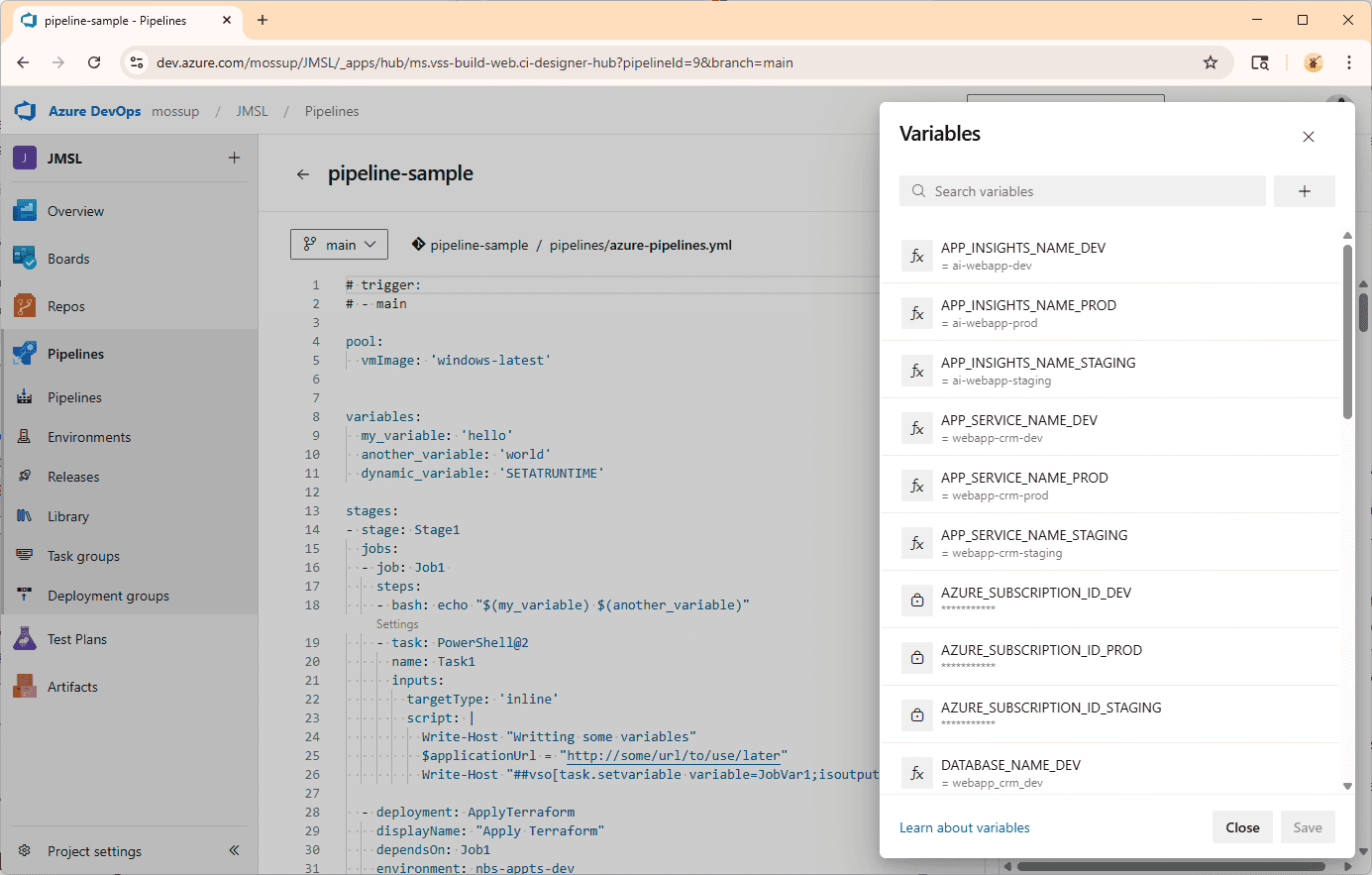
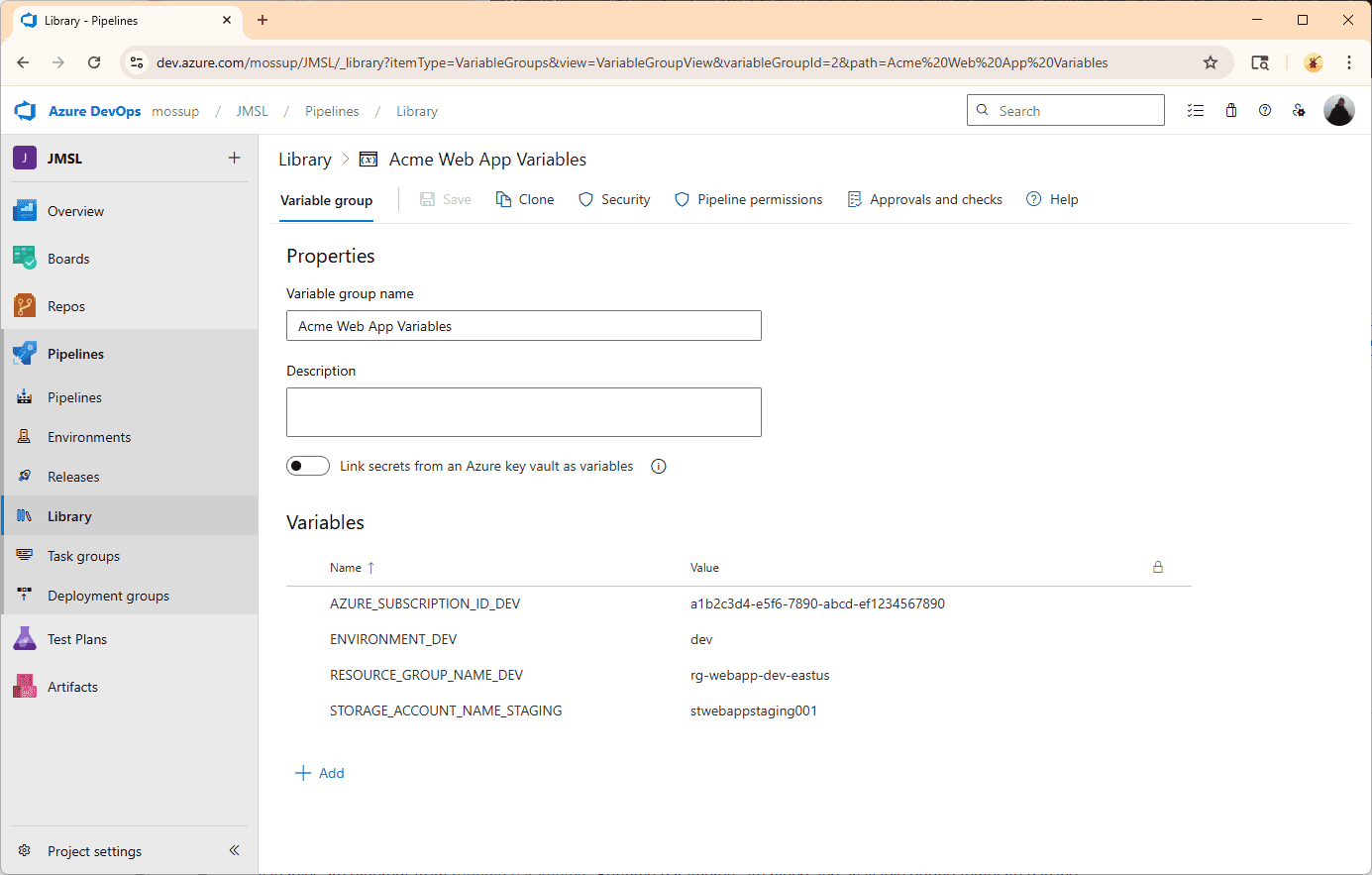
You can access pipeline variables by selecting a pipeline in the Pipelines menu and then clicking the edit button. The Variables button will be displayed in the top right of the screen. In my scenario each config item was repeated for each environment and I had actually created a variable group and started adding the config manually before realising it would take a very long time:
Introducing the Azure CLI
The Azure CLI provides a comprehensive tool chain for interacting with the vast majority of features for both Azure and Azure DevOps. You will need to install the CLI for your platform and also have an Azure/Azure DevOps account to be able to login. Once setup, you can use the az login command to access your Azure resources. See Authenticate to Azure using Azure CLI for more information.
To interact with the Azure CLI we need some base information that is repeated so I declared these as global variables that are accessible at the top of the script:
$organisation = "https://dev.azure.com/<your-organisation>"$project = "<your-project-name>"$pipelineName = "<your-pipeline-name>"
I ended up using 3 commands to write my script:
| Command | Description |
|---|---|
| az pipeline variable list | List out all the variables in the pipeline |
| az pipelines variable-group variable list | List all variables in a variable group |
| az pipelines variable-group variable create | Add a variable to a variable group |
Note that the these commands use the azure-devops extension for the Azure CLI which will automatically install the first time you run the command.
Running CLI Commands
The documentation does a good job of explaining each command, and if you don’t have the patience to RTFM the commands also give good feedback about the parameters required. As an example, lets list out all variables in the pipeline:
az pipelines variable list --pipeline-name $pipelineName --organization $organisation --project $project
This command responds with JSON descriptions of each variable in the pipeline:
["APP_INSIGHTS_NAME_DEV": {"allowOverride": null,"isSecret": null,"value": "ai-webapp-dev"},"APP_INSIGHTS_NAME_PROD": {"allowOverride": null,"isSecret": null,"value": "ai-webapp-prod"},"AZURE_SUBSCRIPTION_ID_DEV": {"allowOverride": null,"isSecret": true,"value": null},...]
Writing the Script
With all the ground work done its time to think about how we want this script to run. For my particular scenario:
- I only needed one environment’s set of variables, so some filtering of variables was required.
- Also, I had already added some of the variables manually so I decided to check upfront if a variable had been added so that it could just be skipped.
- Some variables were used across all environments (so not suffixed with
_DEV) I decided to manually review each variable and decide if I wanted to upload it. - If a variable is secret, then you can’t read its value. For these values I set a value of
SECRETand manually added the secret after the script had run.
These requirements could be broken down into the three CLI calls listed above which I wrapped in PowerShell functions so that they could be chained together in a script:
- Ado-PipelinesVarsList
- Ado-VariableGroupItemExists
- Ado-VariableGroupAddItem
Ado-PipelineVarsList
The CLI command with the required parameters:
az pipelines variable list --pipeline-name $pipelineName --organization $organisation --project $project --output json
The PowerShell function reads out the JSON creating an ordered collection of PowerShell objects which are key,/value pairs. The key is the name of the variable and the value is the value, except when the variable is a secret and then the value is SECRET:
function Ado-PipelineVarsList {param([Parameter(Mandatory = $true)][string]$PipelineName)$result = az pipelines variable list `--pipeline-name $PipelineName `--organization $organisation `--project $project `--output json$variables = $result | ConvertFrom-Json$variableHash = [ordered]@{}foreach ($property in ($variables.PSObject.Properties)) {if ($property.value.isSecret -eq $true) {$variableHash[$property.name] = "SECRET"} else {$variableHash[$property.name] = $property.value.value}}return $variableHash}
Sample output from the function:
PS C:\> Ado-PipelineVarsList "pipeline-sample"Name Value---- -----APP_INSIGHTS_NAME_DEV ai-webapp-devAPP_INSIGHTS_NAME_PROD ai-webapp-prodAPP_INSIGHTS_NAME_STAGING ai-webapp-stagingAPP_SERVICE_NAME_DEV webapp-crm-devAPP_SERVICE_NAME_PROD webapp-crm-prodAPP_SERVICE_NAME_STAGING webapp-crm-stagingAZURE_SUBSCRIPTION_ID_DEV SECRETAZURE_SUBSCRIPTION_ID_PROD SECRETAZURE_SUBSCRIPTION_ID_STAGING SECRET...
Ado-VariableGroupItemExists
The CLI command with the required parameters:
az pipelines variable-group variable list --group-id $targetGroupId --organization $organisation --project $project --query "contains(keys(@), 'RESOURCE_GROUP_NAME_DEV')" --output json
This function takes the id of the variable group and the name of the variable to check. It uses the query parameter which takes a JMESPath as a parameter returning a Boolean value to denote if the supplied variable already exists in the specified variable group:
function Ado-VariableGroupItemExists {param([Parameter(Mandatory = $true)][string]$VariableName)$result = az pipelines variable-group variable list `--group-id $targetGroupId `--organization $organisation `--project $project `--query "contains(keys(@), '$VariableName')" `--output json$containsVariable = $result | ConvertFrom-Jsonreturn $containsVariable}
Sample output from the function:
PS C:\> Ado-VariableGroupItemExists 2 "RESOURCE_GROUP_NAME_DEV"True
Ado-VariableGroupAddItem
The CLI command with the required parameters:
az pipelines variable-group variable create --group-id 2 --name "Test" --value "Value" --organization $organisation --project $project --output json
This function takes the id of the variable group, name and value of the variable to be added:
function Ado-VariableGroupAddItem {param([Parameter(Mandatory = $true)][string]$targetGroupId,[Parameter(Mandatory = $true)][string]$VariableName,[Parameter(Mandatory = $true)][string]$VariableValue)$result = az pipelines variable-group variable create `--group-id $targetGroupId `--name $VariableName `--value $VariableValue `--organization $organisation `--project $project `--output json$uploadResult = $result | ConvertFrom-Jsonreturn $uploadResult}
Sample output from the function:
PS C:\WINDOWS\system32> Ado-VariableGroupAddItem 2 "Test" "Value"Test----@{isSecret=; value=Value}
The Migration Script
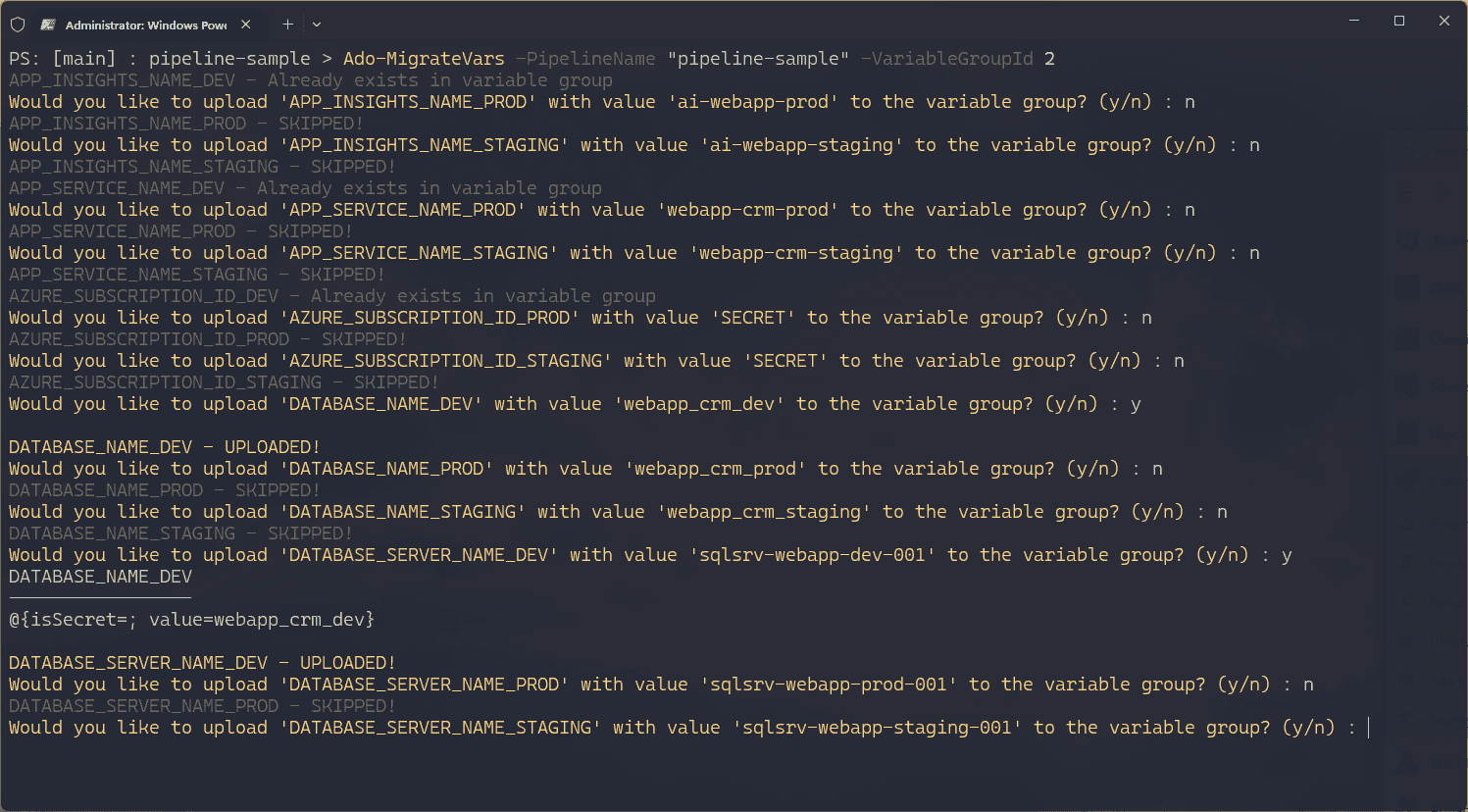
Finally, I wrote the migration script which listed all variables from the pipeline then looped through each variable checking it it already existed and if not, asking the user if they wanted to upload that particularly variable:
function Ado-MigrateVars() {param([Parameter(Mandatory = $true)][string]$PipelineName,[Parameter(Mandatory = $true)][string]$VariableGroupId)$pipelineVars = Ado-PipelineVarsList -PipelineName "pipeline-sample"foreach ($varName in $pipelineVars.Keys) {$varValue = $pipelineVars[$varName]$exists = Ado-VariableGroupItemExists -TargetGroupId $VariableGroupId -VariableName $varNameif ($exists) {Write-Host "$varName - Already exists in variable group" -ForegroundColor DarkGray}else {# Ask user if they want to upload this variableWrite-Host "Would you like to upload '$varName' with value '$varValue' to the variable group? (y/n)" -ForegroundColor Yellow -NoNewline$response = Read-Host " "if ($response -eq "y") {# Upload the variableAdo-VariableGroupAddItem -TargetGroupId $VariableGroupId -VariableName $varName -VariableValue $varValueWrite-Host "$varName - UPLOADED!" -ForegroundColor Yellow}else {Write-Host "$varName - SKIPPED!" -ForegroundColor DarkGray}}}}
Calling the script with the appropriate variables:
Ado-MigrateVars -PipelineName "pipeline-sample" -VariableGroupId 2
We can then evaluate each variable in turn and decide if we want to migrate it across to the new group:
Summary
In this article we have seen how you can use the Azure CLI to interact with Azure DevOps through the azure-devops extension. We have seen how to call the Azure CLI to interact with a pipeline and a variable group to list and add variables. These CLI calls were wrapped in PowerShell and called from a parent script which could then be run from a the command-line.
There are a lot of different ways this could task could be achieved, but due to the requirements of this particular task I decided to evaluate each variable in turn via an interactive y/n prompt so that I could decide which variables to migrate.
The completed script is available on GitHub at Migrate-PipelineVariables.ps1.
back